1.2 Making Calls
1.2.1 Basic Calling
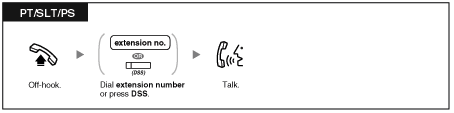
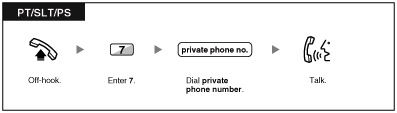
 Calling Another Extension
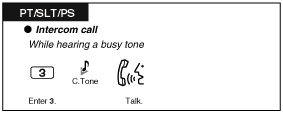
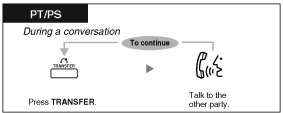
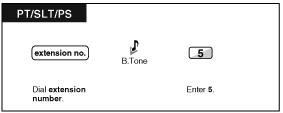
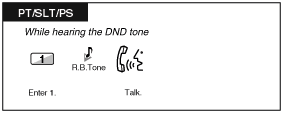
Intercom Call
| | • | The DSS button light shows the current status as follows: | | Off: The extension is idle.
Red on: Your or another extension is using the line. |
|
|
| | • | To call using a directory, refer to "1.11.2 Directories". | | • | For quick operation
If you are an operator or dial some extensions frequently, DSS buttons are useful. |
|
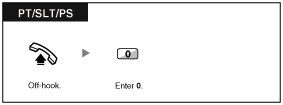
Operator Call
| You can call an extension or a group assigned as the operator. |
|
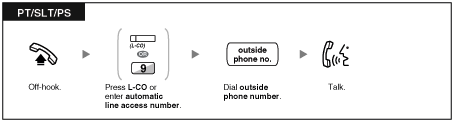
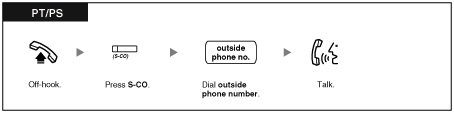
Calling an Outside Party
You have to seize a CO line before dialing an outside phone number because external calls are made via your PBX.
Select one of the following methods: |
Automatic Line Access
CO Line Group Access
To select the specified CO line
| | • | Each of the S-CO button or G-CO button light shows the current status as follows: | | Off: The line is idle.
Red on: The line is in use. |
| | • | You may be restricted from making a call to the specified outside party. To make a call, refer to "1.2.6 Calling without Restrictions". |
|
| | • | To confirm number before dialing, you can enter a phone number and confirm it on the display and then go off-hook. (Predialing) | | • | To make a call to another party without going on-hook, press the FLASH/RECALL button. It will re-access the CO line and provide external dial tone. Pressing the Terminate button will provide intercom dial tone. You can dial the new phone number without going on/off-hook. |
|
TIE Line Access
| When your PBX is connected to a private network, you can access it. |
To call
Account Code Entry
| You may give a specified account code to extension users and check their telephone usage. You can specify an account code for each client and check the call duration. |
| | • | A Panasonic proprietary telephone extension user can enter an account code during a conversation and when hearing reorder tone after the other party hangs up. | | • | Account codes may use the digits "0" through "9". | | • | If you enter the wrong code, press the " " key and re-enter the account code. " key and re-enter the account code. |
|
| | • | You may not be able to make an outside call without an account code. Entry mode is assigned to each user. Ask your manager for your mode. | | • | For your convenience, you can store the code with the phone number in the memory (e.g., Speed Dialing). |
|
1.2.2 Easy Dialing
One-touch Dialing
| You can store a phone number into the flexible button for one-touch operation. |
| |
Personal Speed Dialing
You can store numbers at your extension for your personal use. (Default: 10 numbers, 00-09)
This feature is also known as Station Speed Dialing. |
To store a phone number
To dial
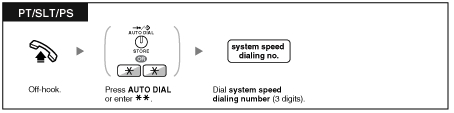
System Speed Dialing
| You can make calls using speed dialing numbers stored in the PBX. |
Hot Line
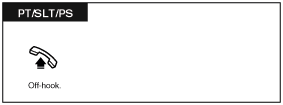
You can make an outside call simply by going off-hook if you have preprogrammed your phone.
This feature is also known as Pickup Dialing. |
To store a phone number
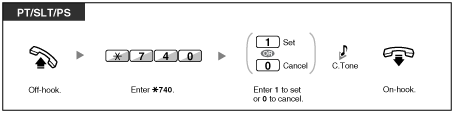
To set/cancel
To dial
| | • | To call another party, dial the desired party's phone number before the preprogrammed number is dialed. | | • | You should assign the intercom line as the seized line when going off-hook. (Preferred Line Assignment– Outgoing) |
|
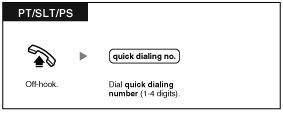
Quick Dialing
| You can make a call simply by pressing the preprogrammed number for quick dialing. For details, consult your manager or dealer. |
| | • | It is a useful feature for Hotel.
For example, to dial the Room Service, dial the digit "3", not the full extension number. |
|
1.2.3 Redial
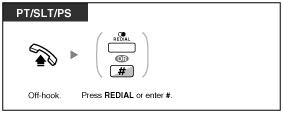
Last Number Redial
| | • | Up to 32 digits can be stored and redialed. | | • | After pressing REDIAL, if you hear a busy tone again, press REDIAL to retry. |
|
| | • | To redial automatically, press the SP-PHONE button and then the REDIAL button, or press the REDIAL button directly. It will keep trying the busy number until the called party answers or until a specified timeout (Automatic Redial). You can perform other tasks during dialing. To cancel, press the FLASH button.
Some CO lines may not support this feature. |
|
1.2.4 When the Dialed Line is Busy or There is No Answer
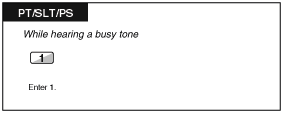
Automatic Callback Busy
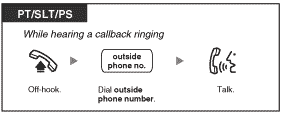
| You can set the telephone to receive callback ringing: |
| • | when a dialed extension becomes idle. | | • | when your desired CO line that is in use by another extension becomes idle. |
|
| You cannot set Automatic Callback Busy for a busy party outside of the PBX. |
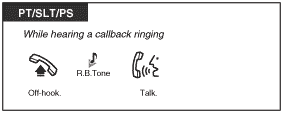
| When you answer the callback ringing: |
| • | For an outside call: The line is seized. | | • | For an intercom call: The called extension starts ringing automatically. |
|
To set (for both extension and CO line)
To answer the callback ringing from an idle extension
To answer the callback ringing from an idle CO line
| | • | If you do not answer the callback ringing within 10 seconds, this feature will be canceled. |
|
Automatic Callback Busy Cancel
Call Waiting
You can inform the called party that your call is waiting.
This feature is also known as Busy Station Signaling (BSS). |
| | • | Depending on the other party's telephone, the "Off-Hook Call Announcement (OHCA)" and the "Whisper OHCA" features can be used. You can talk to the other party through the speaker and the microphone (OHCA) or you only send a call announcement through the handset (Whisper OHCA), if they are having another conversation using the handset.
Refer to "1.7.3 Call Waiting/Off-Hook Call Announcement (OHCA)/Whisper OHCA". |
|
Message Waiting
 For a caller For a caller
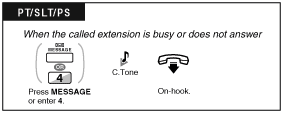
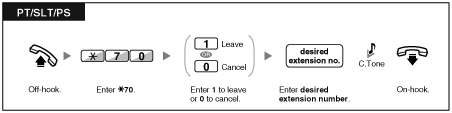
When the called extension is busy or does not answer your call, you can leave a notification so that the called party may call you back.
For a called extension
As a message receiver, the MESSAGE button light lets you know that a call has been received. If you receive notification, you can call back the caller by a simple operation. |
| |
 For a caller
To leave a message waiting indication
To leave/cancel a message waiting indication
For a called extension
To check the left message and call back
To call back
| | • | The MESSAGE button light shows the current status as follows:
Off: No message
Red on: You have a message. | | • | The display shows the messages starting with the most recent call. | | • | For a called extension, you can cancel the message waiting indication if you do not want to callback. To cancel, press the MESSAGE button and then press the soft button. | | • | On your PT, you can establish one or more "Message for another extension " buttons.
These buttons can accept the message notification of other extensions or various incoming call distribution groups.
In other words, you can monitor the message notifications of other telephones. | | • | This feature is also available for single line telephone extension users with a message waiting light. Even if they do not have a message waiting light, they may receive a special dial tone as notification, if required. |
|
Executive Busy Override
| The preprogrammed extension can call someone who is busy on the telephone and establish a three-party conversation. |
To join
For the joined extension
To talk each party alternately
| | • | You can also deny others the possibility of joining your conversation (Default: Allow). Refer to "1.7 Extension Settings". |
|
Call Monitor
| The preprogrammed extension can monitor another extension. |
To monitor
DND Override
| The preprogrammed extension can call someone who has set the DND feature. |
1.2.5 Alternate Calling–Ring/Voice
The caller can alternate the alerting method, either ring or voice, when making an intercom call.
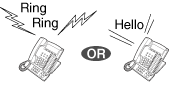
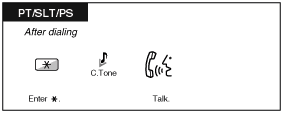
On the other hand, any extension can set the alerting method, either ring or voice, when receiving an intercom call. | | Ringing (Default): You can call the other party with a ring tone. | | Voice-Calling: You can talk to the other party immediately after confirmation tone. |
|
| |
To change the method
| | • | If the called party uses a single line telephone or portable station, Voice-Calling is not available. | | • | This feature is not available when the called party's telephone is in the Voice Call Deny mode. |
|
1.2.6 Calling without Restrictions
Remote COS Access
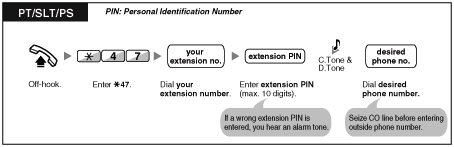
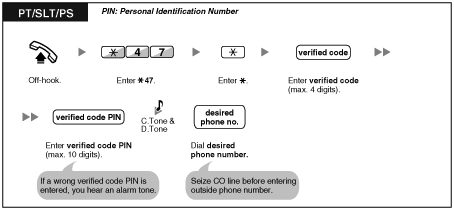
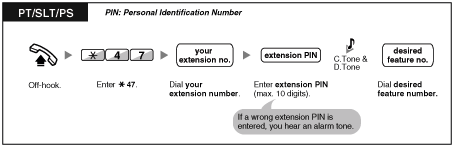
| You can use your calling privileges (Class of Service) at another extension. You may override restrictions which have been set. To use this feature, an original extension number and an extension PIN (Personal Identification Number) are required. You can make a call by entering a verified code and verified code PIN. For the available verified code, ask your manager. |
To call (Walking COS)
To call (Verified Code Entry)
1.2.7 Direct Inward System Access (DISA)
Calling through DISA
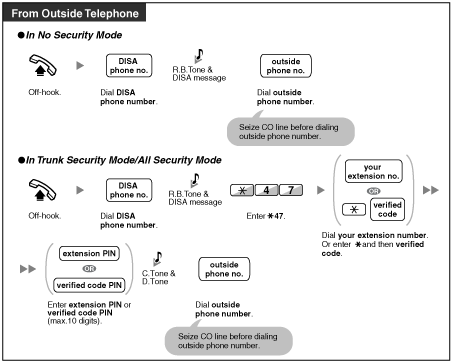
When outside callers access extensions in the PBX, a prerecorded message greets the caller and gives information about how to access an extension. You do not need the operator's assistance.
You may be able to access system features or call an outside party with your password depending on the security mode. Ask your manager for the mode assigned to your PBX. |
| |
To call an extension
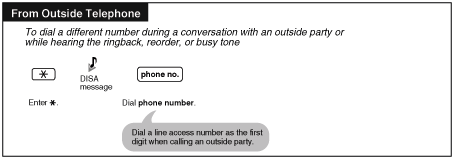
To call an outside party
To retry
| | • | WARNING
When you enable the Outside-to-Outside Call feature of DISA, and a third party discovers the password (verified code PIN/extension PIN) of the PBX, there will be a risk that they will make fraudulent phone calls using the telephone line, and the cost will be charged to your own account. In order to avoid this problem, we strongly recommend the following points: | | | a) Carefully maintain the secrecy of the PIN. | | b) Specify a complicated PIN as long and random as you can make it. | | c) Change the PIN frequently. |
| | • | Time limit
Both parties will hear an alarm tone fifteen seconds before the specified time limit. To extend, press any dial button except . | | • | If Built-in Automated Attendant service is set, you can access the desired extension simply by pressing a single digit (0-9) from the options given the prerecorded message. |
|
1.2.8 Remote Setting
| You can set the following features on your telephone from another extension or through DISA. |
| • | Call Forwarding (FWD)/Do Not Disturb (DND) | | • | Changing the Log-in/Log-out Status of Extensions | | • | Absent Message | | • | Extension Lock | | • | Time Service Switching Mode |
|
From another extension
Through DISA