1.12 Holding Features

1.12.1 Call Hold

Description

An extension user can put a call on hold. The following Hold features are available:

Feature

Description

Call Hold General
Any extension can retrieve a held call.
Exclusive Call Hold 
Only the extension user who held the call can retrieve it.
The result of the holding operation can be determined through system programming. Pressing the HOLD button again just after the first time alternates the mode between General and Exclusive Call Hold.

Conditions

Using the Call Hold feature, a proprietary telephone (PT) user can have one intercom call and multiple CO line calls on hold simultaneously. To hold multiple intercom calls, the user should use the Call Park feature. (rarrow.gif 1.12.2 Call Park) Using the Call Hold feature, a single line telephone (SLT) user can have either one intercom call or one CO line call on hold. To hold multiple calls, the user should use the Call Park feature.
Music on Hold
Music, if available, is sent to the held party. (rarrow.gif 1.12.4 Music on Hold)
Hold Recall
If a call on hold is not retrieved within a preprogrammed time period (rarrow.gif Hold Recall Time [200]), the Hold Recall tone is heard at the extension which put the call on hold. If the extension is engaged in a call, the Hold Alarm will be heard.
If an outside party is placed on hold and the call is not retrieved within a preprogrammed time period after the Hold Recall time expires, the call is automatically disconnected.
Automatic Call Hold
A PT can be configured through system programming to place the current call on hold when the PT user presses a CO, G-DN, or INTERCOM button to make or answer another call. If this feature is not enabled, the current call will be disconnected.
[Example of Automatic Call Hold]
It is possible to receive an incoming CO line call by pressing the flashing G-DN button. The current intercom call (on the INTERCOM button) is placed on hold. To return to the held call, press the INTERCOM button.
Call Hold Retrieve Deny
Internal Call Block (rarrow.gif 1.1.2.2 Internal Call Block) also determines which extensions' calls an extension user can retrieve, i.e., if extension 101 cannot call extension 201, then it cannot retrieve extension 201's held calls either.
SLT Hold Mode
It is possible to choose how to hold and transfer a call with an SLT through system programming. The following methods are available:

Hold

Transfer to CO Line

Transfer to Extension

Mode 1
Flashing the hookswitch
+
Going on-hook
Flashing the hookswitch
+
CO Line Access No.
Flashing the hookswitch
+
Extension No.
Mode 2
(Default)
Flashing the hookswitch
+
Hold Feature No.
+
Going on-hook
Flashing the hookswitch
+
CO Line Access No.
Flashing the hookswitch
+
Extension No.
Mode 3
Flashing the hookswitch
+
Hold Feature No.
+
Going on-hook
Flashing the hookswitch
+
Hold Feature No.
+
CO Line Access No.
Flashing the hookswitch
+
Extension No.
Mode 4
Flashing the hookswitch
+
Hold Feature No.
+
Going on-hook
Flashing the hookswitch
+
Hold Feature No.
+
CO Line Access No.
Flashing the hookswitch
+
Hold Feature No.
+
Extension No.
If one of the following occurs frequently with an SLT, choose "Mode 2", "Mode 3", or "Mode 4":
a)When an SLT user answers a call, a reorder tone is heard or no one is heard on the other end.
b)When an SLT user goes off-hook, a reorder tone is heard instead of a dial tone.
If a call is not terminated after going on-hook, the above cases occur. To avoid these problems, choose "Mode 2", "Mode 3", or "Mode 4". Every call will be terminated unless the Hold feature number is entered after flashing the hookswitch in Mode 2, Mode 3, and Mode 4.
Hold Alarm tone pattern has a default (rarrow.gif 5.2.1 Tones/Ring Tones).

User Manual References

User Manual

1.12.2 Call Park

Description

An extension user can place a call into a common parking zone of the PBX. The Call Park feature can be used as a transferring feature; this releases the user from the parked call to perform other operations. A parked call can be retrieved by any extension user.

Conditions

Automatic Call Park
It is possible to select an idle parking zone automatically.
Retry
If the specified parking zone is occupied or there is no vacant zone for Automatic Call Park, the originator will hear a busy tone. Retrying is possible while hearing a busy tone by selecting another parking zone or a vacant zone.
Call Park Recall
If a parked call is not retrieved within a preprogrammed time period, the Call Park Recall tone will be heard at the Transfer Recall destination assigned to the extension which parked the call. If the destination is engaged in a call, the Hold Alarm will be heard.
If a parked CO line call is not retrieved within a preprogrammed time period (Default: 30 minutes), it is automatically disconnected.
Call Park Button
Pressing the Call Park button parks or retrieves a call in a preset parking zone.
Any flexible button can be customized as the Call Park button. It shows the current status of the preset parking zone as follows:

Light pattern

Status

Slow red flashing
A call is parked in the preset parking zone
Off
There are no parked calls
Call Park (Automatic Park Zone) Button
Pressing the Call Park (Automatic Park Zone) button parks a call in an idle parking zone automatically. Any flexible button can be customized as the Call Park (Automatic Park Zone) button.
Call Park Retrieve Deny
Internal Call Block (rarrow.gif 1.1.2.2 Internal Call Block) also determines which extensions' calls an extension user can retrieve from a parking zone, i.e., if extension 101 cannot call extension 201, then it cannot retrieve extension 201's parked calls either.

Feature Guide References

User Manual References

User Manual

1.12.3 Call Splitting

Description

An extension user can speak alternately with two parties, similar to conventional call waiting. Placing the current call on hold allows the user to speak with the other party.

Conditions

Consultation Hold
While having a conversation with one party, the other party is on consultation hold. (rarrow.gif 1.12.5 Consultation Hold)

User Manual References

User Manual

1.12.4 Music on Hold

Description

Music can be played to any party on hold. The following audio sources are available:
a)Internal audio source
b)External audio source
c)Tone
Either a background music (BGM) number or tone can be selected as the Music on Hold (rarrow.gifMusic on Hold [711]).
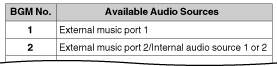
BGM numbers are the same as the external music port numbers (selecting BGM 1 in effect selects the audio from external music port 1, for example). However, BGM 2 includes internal audio sources 1 and 2 as well as external music port 2. It is possible to choose what audio source will be used as BGM 2 (rarrow.gifAudio Source Selection for BGM 2 [710]).
[BGM Number and the Audio Source]
imf4080a.gif

Conditions

Hardware Requirement: User-supplied audio device (CD player, radio, etc.)
Volume Control
It is possible to change the volume of an internal and/or external audio source.
Each tenant can be assigned an audio source. (rarrow.gif2.2.3 Tenant Service)

Installation Manual References

Installation Manual

1.12.5 Consultation Hold

Description

When an extension user is on a call and performs a Call Transfer (rarrow.gif 1.11.1 Call Transfer), Call Splitting (rarrow.gif 1.12.3 Call Splitting), or tries to establish a conference call (rarrow.gif 1.13.1.2 Conference), the call is automatically placed on consultation hold. When the operation is completed or canceled, the consultation hold is released.