1.17 Message Features

1.17.1 Message Waiting

Description

When an extension user calls another extension that does not or cannot answer the call, he or she can leave a Message Waiting notification. The appropriate button or lamp on the called extension user's telephone will light, indicating that a call was missed or a message recorded by the Voice Processing System (VPS) is waiting. A Message button can be used to call the caller back or listen to the message.
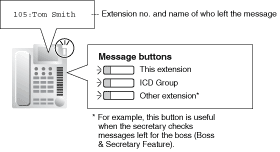
When a message is left for a proprietary telephone (PT), the Message button on it lights or the Message/Ringer Lamp turns red. Pressing the lit Message button while on-hook shows the caller's information as shown below:
[Example]
imf1240a.gif

Conditions

Message Button
Any flexible button can be assigned as a Message button. This button can be used on a PT which does not have the MESSAGE button (fixed button), or can be used on any PT to access messages left for another extension or for an incoming call distribution (ICD) group.
Distinctive Dial Tone for Message Waiting
If Distinctive Dial mode is enabled, dial tone 4 will be sent to an extension when a message has been left on the extension. (rarrow.gif 1.25.1 Dial Tone)
SLT with a Message Waiting Lamp
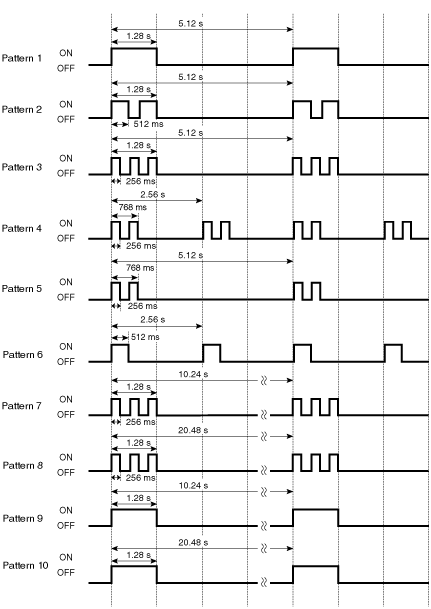
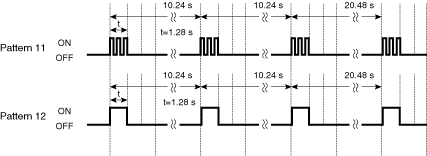
The lamp activates in the same way as the MESSAGE button on a PT, provided an MSLC card is connected to the PBX. The preferred Message Waiting Lamp light pattern can be selected from the twelve patterns shown below. System programming for each extension port is required to use this feature.

[SLT Message Waiting Lamp Light Patterns]

imf1241a.gif
imf1242a.gif
It is possible to leave a Message Waiting notification while hearing a ringback tone, busy tone, or DND tone.
Message Waiting notifications are always left on the original extension. Message Waiting notifications cannot be sent to a Call Forwarding (FWD) destination (rarrow.gif 1.3.1.2 Call Forwarding (FWD)).
Both the calling extension and the called extension can cancel a notification after it has been left.
If a call is missed, the Message Waiting notification will be cleared when the called extension calls the caller back and the call is answered.
Message Waiting Notification via Voice Mail DPT (Digital) Integration
If a voice message is left for the called extension, the notification will be cleared after each new message has been played. (rarrow.gif 1.21.2 Voice Mail DPT (Digital) Integration)
Message Waiting Notification via Voice Mail DTMF Integration
If a voice message is left for the called extension, the notification will be cleared either by the PBX after the MESSAGE button (or a Message button) is pressed, or by the VPS after each new message has been played, according to system programming. (rarrow.gif 1.21.3 Voice Mail DTMF Integration)

Feature Guide References

User Manual References

User Manual

1.17.2 Absent Message

Description

Extension users can prepare a brief text message (Absent Message) that will be displayed to other extension users when they are called. These messages can explain the reason for their absence, and may be edited through system programming and personal programming.
The following Absent Messages may be programmed:

Type

Message No.

Message (Example)

Description

System message
1
Will Return Soon
Messages may be edited through system programming (rarrow.gif Absent Message [008]). They can be used by any extension user.
2
Gone Home
3
At Ext %%%% (Extension Number)
4
Back at %%:%% (Hour:Minute)
5
Out until %%/%% (Month/Day)
6
In a Meeting
7
 
8
 
Personal message
9
 
A message is programmable by each extension through personal programming (Personal Absent Message), which can only be used by that extension user.

Note

The "%" shown above indicates a parameter to be entered when assigning a message at an individual extension.
Up to seven "%"s can be stored for each message.

Conditions

An extension user can select only one Absent Message at a time. The selected message is displayed at the extension while on-hook.
The caller must use a display proprietary telephone (PT) to see the Absent Message.

User Manual References

User Manual