| 1. | Automatic Configuration–Quick Setup |
| | The PBX shares information with the VPS during setup which allows the VPS to automatically create the appropriate mailboxes for all extension numbers and floating extension numbers of ICD groups within the PBX. |
|
| 2. | FWD to a Mailbox of the VPS |
| An extension user can set his or her calls to be forwarded to the VPS. ( 1.3.1.2 Call Forwarding (FWD)) When a call is received at the extension, the PBX sends the extension's mailbox number to the VPS and the VPS can answer the call with an outgoing message (OGM) ("Hi, I'm out of the office today..."). 1.3.1.2 Call Forwarding (FWD)) When a call is received at the extension, the PBX sends the extension's mailbox number to the VPS and the VPS can answer the call with an outgoing message (OGM) ("Hi, I'm out of the office today..."). |
|
| 3. | Intercept Routing to a Mailbox of the VPS |
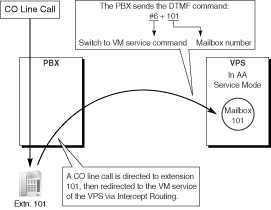
| CO line calls can be programmed to be automatically redirected to an extension user's mailbox when the extension user does not or cannot answer them. ( 1.1.1.5 Intercept Routing) The VPS can answer the call with an OGM ("I can't take your call now...") and callers can leave messages in the mailbox. In order to use this feature, a floating extension number used by the VPS must be assigned as the intercept destination for the original destination (extension, ICD group, etc.) which received the call, and "Intercept to Mailbox" must be enabled through system programming. |
|
| 4. | Transferring to a Mailbox of the VPS |
| | Extension users can transfer calls to a mailbox, after which callers can leave a message for the desired party. ( 1.11.1 Call Transfer) While answering a call, the extension user simply presses the Voice Mail (VM) Transfer button and enters the extension number of the party the caller wishes to leave a message for. The VPS will answer the transferred call and record a message. | VM Transfer Button
In order to use this feature, the extension user must use a flexible button customized as the VM Transfer button. A floating extension number of a VM group must be assigned to the button when creating it. |
|
| 5. | Transfer Recall to a Mailbox of the VPS |
| When a call is directed to an extension via the VPS's AA service but is not answered within a preprogrammed amount of time ( Transfer Recall Time [201]), the PBX can transfer the call to the extension's mailbox. The VPS can answer the call with an OGM ("I can't take your call now...") and the caller can leave a message. In order to use this feature, "Transfer Recall to Mailbox" must be enabled through system programming. |
|
| 6. | Listening to Recorded Messages (Direct Mailbox Access) |
| After the VPS records a message, it will light the appropriate lamp or button on the extension for which the message was intended, to indicate there is a new message. ( 1.17.1 Message Waiting) The extension user can play the message back simply by pressing the button used for mailbox access; he or she does not need to enter a mailbox number. This button may be the MESSAGE button, depending on the proprietary telephone (PT) being used, or a One-touch Dialing button assigned to dial a floating extension number of a VM group. ( 1.6.1.2 One-touch Dialing)
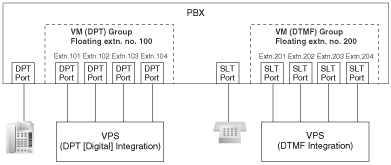
An extension user can, at any time, play back any messages in his or her mailbox, including old messages. The user simply dials a floating extension number used by the VM (DPT) group from his or her extension. (Direct Mailbox Access) A mailbox number does not need to be dialed. This feature is enabled or disabled according to the Class of Service (COS) assigned to the mailbox through VPS programming. |
|
| 7. | VPS CO Line Service & Automatic Time Mode Notification* |
| Multiple tenants can share a single VPS; a dedicated VPS port for each tenant is not required. This is possible because when CO line calls are directed or redirected to a VM (DPT) group, the PBX sends information to the VPS which determines the OGM that is heard by callers. ("Thank you for calling Company A", "Thank you for calling Company B", etc.)
If an incoming CO line call is directed via DIL or DID distribution to a VM (DPT) group, the PBX sends to the VPS the corresponding information that is assigned in the DIL Table or DID Table, namely, the VPS trunk (CO line) group number and the tenant number. ( 1.1.1.2 Direct In Line (DIL), 1.1.1.3 Direct Inward Dialing (DID))
This information is used to send the appropriate OGM to the caller for the current time mode ( 2.2.4 Time Service), and is programmable for each CO line in the DIL Table, and for each DID number in the DID Table. | | | The software contained in the VPS may need to be updated before this feature can be used. |
|
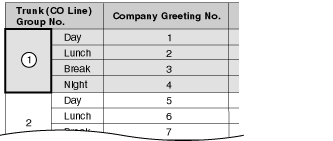
| | [Example] | | In order for callers to hear the correct OGM for the current time mode, the DIL Table or DID Table of the PBX must be programmed to match the settings of the VPS. | | | | [Programming Example: DID Table] | | Each DID number can be assigned a VPS trunk (CO line) group number as well as a tenant number. | | | [Programming Example: Trunk (CO Line) Group Assignment for VPS] | | These settings are made on the VPS. The trunk (CO line) group number should correspond to the number programmed in the PBX's DIL Table or DID Table. | | | | |
|
| | In this example: | A customer dials the telephone number for Company A, "123-4567".
The call is handled by DID distribution according to system programming. (Refer to the above system programming example, "DID Table".) The tenant number programmed for this DID number determines that the current time mode is Day (not shown here), and the call is therefore directed to extension 105.
If extension 105 does not answer the call, the call is redirected to extension 100 via Intercept Routing (not shown here), which is a floating extension number assigned to a VM (DPT) group. When the PBX redirects the call to the VPS, it also sends the VPS trunk (CO line) group number and tenant number as programmed in the DID Table.
The VPS answers the call with the greeting message assigned to the trunk (CO line) group number and current time mode, Company Greeting Number 1. (Refer to the above system programming example, "Trunk (CO Line) Group Assignment for VPS".)
| A customer dials the telephone number for Company B, "123-2468".
The call is handled by DID distribution according to system programming. (Refer to the above system programming example, "DID Table".) The tenant number programmed for this DID number determines that the current time mode is Lunch (not shown here). The call is therefore directed to extension 100, which is a floating extension number assigned to a VM (DPT) group.
When the PBX directs the call to the VPS, it also sends the VPS trunk (CO line) group number and tenant number as programmed in the DID Table.
The VPS answers the call with the greeting message assigned to the trunk (CO line) group number and current time mode, Company Greeting Number 6. (Refer to the above system programming example, "Trunk (CO Line) Group Assignment for VPS".) |
|
| 8. | Caller ID Information |
| | If the PBX receives Caller ID information (caller's name and telephone number) when receiving a CO line call, the PBX sends this information to the VPS. This information can be used to play specific OGMs to specific callers, or announce the name of the calling party when listening to recorded messages. |
|
| 9. | Paging by the VPS |
| | The VPS can page a called party. ( 1.14.1 Paging) If the names of staff members have been previously recorded into the VPS, the VPS can announce, "I have a call for (name of staff member)". If Caller ID information is received by the PBX, and if the name of a caller has been previously recorded, the VPS can also announce the name of the caller. |
|
| 10. | Status Notification to the VPS |
| | When a call is redirected to the VPS, the PBX sends the status of the called extension to the VPS. This allows the VPS to quickly handle the call, playing the appropriate OGM for the caller. |
|
| 11. | Live Call Screening (LCS) |
| Similar to a conventional home answering machine, LCS allows a proprietary telephone (PT) or portable station (PS) user to monitor his or her own mailbox as a caller is leaving a message and, if desired, answer the call simply by pressing the LCS button.
PT users can choose one of two ways to perform LCS, through personal programming (Live Call Screening Mode Set): | | Hands-free mode: The user can screen the call automatically through the built-in speaker. | | Private mode: The user will hear an alarm tone when a message is being recorded in his or her mailbox. To screen the call, the user goes off-hook with the handset, MONITOR button, or SP-PHONE button. | Note | | Only Private mode is available for PS users. When using LCS, PS users cannot monitor a call through the speakerphone. |
| LCS Button
Any flexible button can be customized as the LCS button. Once LCS is turned on, it will stay on until turned off, therefore extension users may wish to turn LCS off when they are away from their desks to prevent others from screening their calls. |
|
| 12. | Two-way Recording into the VPS |
| | PT users can record their own telephone conversations. These recordings can be stored in the PT user's own mailbox (Two-way Record) or in another user's mailbox (Two-way Transfer), depending on which button the user presses to begin recording. | Two-way Record/Two-way Transfer Button
A flexible button can be customized as the Two-way Record or the Two-way Transfer button.
If an extension number is assigned when creating the Two-way Transfer button, conversations will be recorded into that extension's mailbox by simply pressing this button (One-touch Two-way Transfer Button). | Note | | When you record Two-way telephone conversations, you should inform the other party that the conversation is being recorded. |
|
|
| 13. | Time Synchronization* |
| | The VPS can automatically adjust its clock if the date and time settings of the PBX are adjusted. For example, if the PBX is programmed to automatically adjust to Daylight Saving Time, the VPS will adjust its clock as well. ( 2.3.4 Automatic Time Adjustment) | | | The software contained in the VPS may need to be updated before this feature can be used. |
|
|
|
| 14. | Remote Call Forwarding Set* |
| While accessing the VPS from an extension or a remote location, a PBX user can set his or her calls to be forwarded, as well as select the destination of the forwarded calls.
Calls can be forwarded to an outside party provided this feature is enabled through system programming ( Call Forwarding to CO Line [504]). | | | The software contained in the VPS may need to be updated before this feature can be used. |
|
|
|



 H
H